
Overview
Amazon Warehousing and Distribution (AWD) is a 3PL solution that allows you to store your inventory in Amazon’s secure warehouses while they handle the management and distribution of your products. Learn more about the initial AWD configuration here.
AWD shipments move inventory from your warehouse to Amazon’s Warehousing and Distribution network. Skustack’s AWD Picking Module automates picklist creation for each shipment, ensuring precision and efficiency.
AWD Picking Module
To view and manage your AWD Shipments, navigate to the Fulfillment tab > AWD Picking module > tap the Search icon.
Search Mode
There are two search modes available to find your AWD Shipments:
- Search All – Searches all AWD Shipments that have been submitted to Amazon. This mode includes optional filters for Warehouse, shipment status and SKU.
- Search By ID – Searches for a specific AWD Shipment using its Sellercloud ID.

You can also add filters for inventory and picking status, kits and regions either on the AWD List or in the shipment itself.
Pick Items
To start picking items for an AWD Shipment:
- Tap on a shipment and all associated products will be listed, each one displaying the picked quantity and the total quantity required.
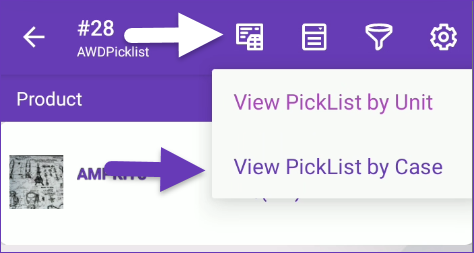
- To manage your picklist by the case, tap on the top left picklist icon and select View PickList by Case.
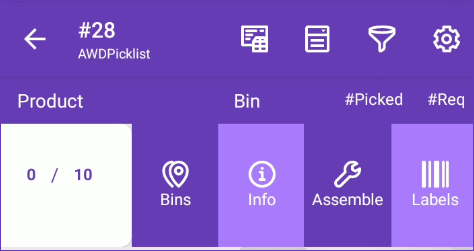
- Swipe an item to the left to reveal shortcuts to other actions:
- Bins – Here you can find all the bins where the product currently has inventory.
- Info – Tap to open up the product info module.
- Assemble – To assemble a kit required for a AWD shipment.
- Labels – To print labels for the product.
- Scan the ProductID/UPC/Serial, or tap the item on the screen. The product picking dialog will open.
- Scan/enter a bin, or select one of the suggested bins. The suggestion is based on the following factors:
- The bin is sellable. Although unsellable bins are excluded from the suggestions list, you can still manually enter an unsellable bin name if needed.
- The bin type is Normal or Temp.
- Primary bins will always be suggested first.
- The bin with the most or least quantity will be suggested based on the client setting PickList Bin suggestion sort qty by ASC Order.
- Scan units to add to the picked qty or adjust the number manually. To auto-populate the total quantity available for the scanned product in that bin, enable Skustack’s Warehouse Management setting Auto populate progress quantity when bin is selected.
- If the Lot Number workflow is enabled for your company and the product is set as expirable, you must select a Lot Number before being able to pick it. When an item is picked from a bin containing only one Lot Number, Skustack will automatically populate that Lot.
- Tap Pick to update the picked qty on the shipment.
Related Settings
| Setting | Description |
| Validate serial globally | Client Setting that enables serial number validation in Skustack. Learn more about serial number validation and relevant client settings here. |
| Require serial scan when picking | Skustack’s Warehouse Management setting. When enabled, it will force the user to scan serials for products that are set to require serial scan. |
| Auto populate progress quantity when bin is selected | Skustack’s Warehouse Management setting. When a bin is selected, the Pick Qty field will automatically be set to the total quantity available in that bin, up to the quantity required. |
| Auto close after fully picked | Skustack’s Warehouse Management setting. Automatically closes the dialog window when the list is fully picked. |
| Auto close when QtyToPick is full | Skustack’s Warehouse Management setting. When the Qty Picked is equal to the Qty Required, the product will be picked automatically without having to tap the Pick button. |