Overview
The Skustack Admin Dashboard serves as a web-based visualization center for your most recent warehouse operations. The Dashboard is fully customizable and summarizes a variety of real-time inventory activities for a more comprehensive view. Your customization choices are saved per user, ensuring that any individual changes do not affect other accounts and are available on any device you log into.
Dashboard Widgets
Depending on your role and responsibilities, you can personalize your Dashboard to focus on different warehouse activities. You can select up to 11 different widgets, each containing hyperlinks for quick access to related pages across the UI.
To customize your Dashboard, click the Gear icon located at the top right corner of the Home page.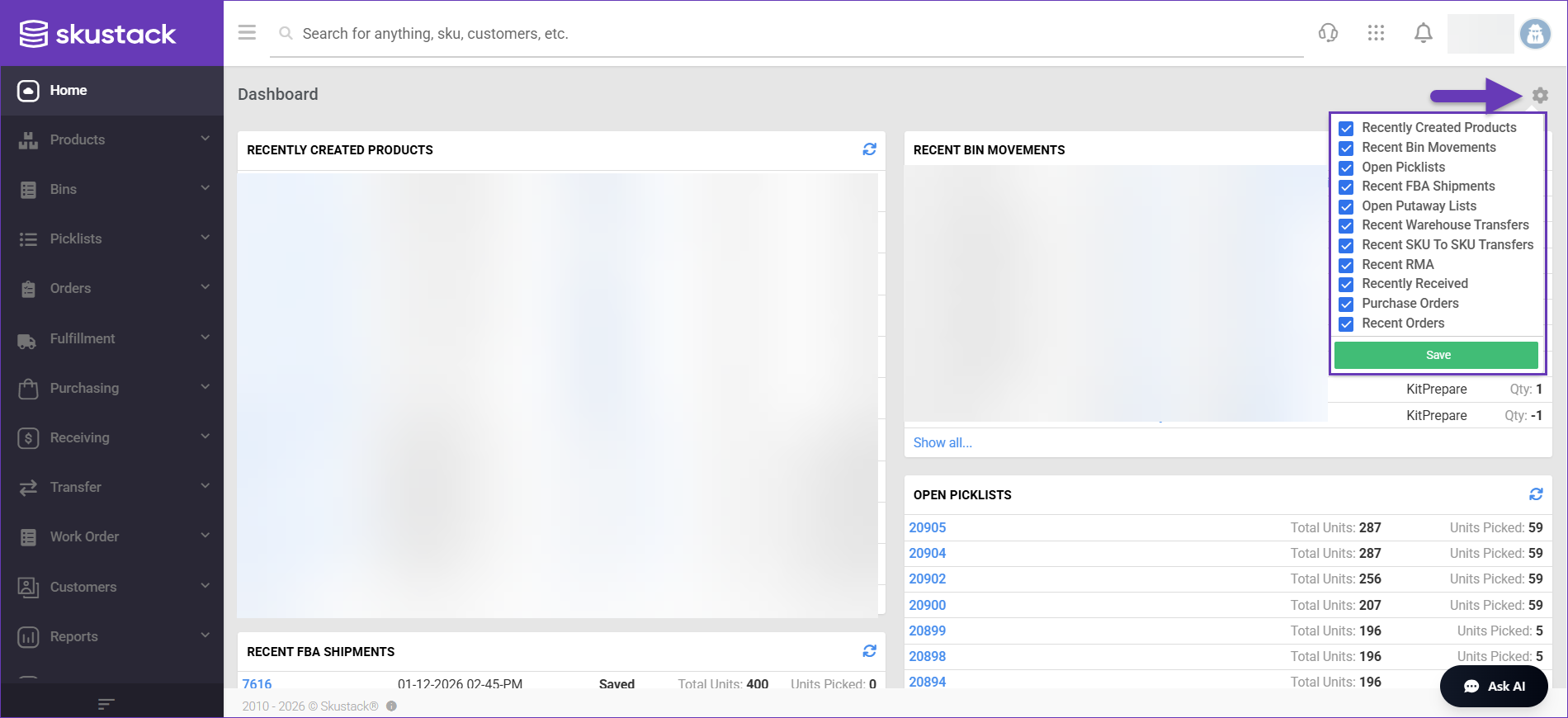
Recently Created Products
The Recently Created Products widget displays the 10 most recently added products in the system. The grid provides the following product information:
- SKU – The unique Stock Keeping Unit hyperlink, which leads to the Product Details page.
- Product Name – The name or title of the product.
- Company – The company selling the product.
- Physical Qty – The product’s current physical inventory count in your warehouse.
- UPC – The Unique Product Code assigned to the product.
Click Show all… to view all newly created products in the Manage Products page. To refresh the list, click the widget’s Reload button. 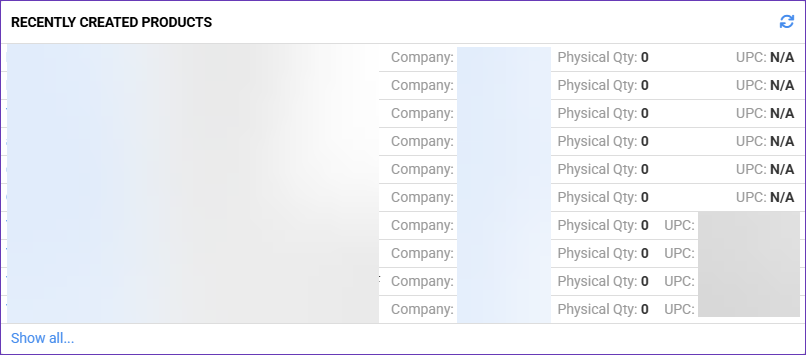
Recent Bin Movements
In this widget, you can view real-time inventory bin movements across all warehouses in your account. Here are displayed:
- Bin Name – Bin affected by the inventory movement.
- Warehouse – A hyperlink to the bin’s warehouse.
- Product – A hyperlink to the moved product’s page.
- Movement Type – Type of inventory bin movement.
- Qty – Updated product inventory levels.
Click Show all… to view and refine the Bin Movements in your account. To refresh the list, click the widget’s Reload button.
Open Picklists
Track the 10 most recent open Picklists using the Open Picklists widget. This grid allows you to monitor the picking progress and facilitates immediate access to recent picklists information:
- Picklist ID – ID hyperlink, which leads to the Picklist page.
- Name – Picklist’s name or title.
- Total Units – Total product units to be picked.
- Units Picked – Picked product quantity.
Click Show all… to view and refine all existing Picklists. To refresh the list, click the widget’s Reload button.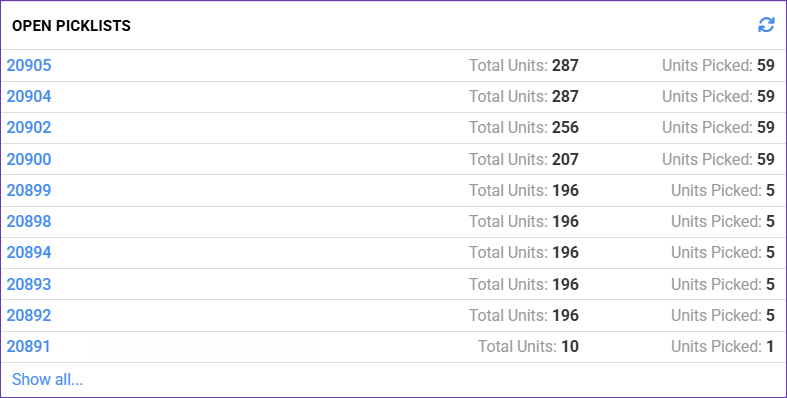
Recent FBA Shipments
This widget shows the 10 most recent FBA Inbound Shipments in your account. Some of the rows may appear multiple times in case there is more than one FBA Shipment ID associated with the respective internal ID. The widget contains:
- ID – Internal Skustack Shipment ID hyperlink, which leads to the Shipment Details page.
- Amazon Shipment ID – The unique Amazon Shipment ID.
- Description – Internal Description from the General panel of the Shipment Details page.
- Shipment Status – Amazon shipment status.
- Total Units – Total product units to be sent with this shipment.
- Units Picked – Picked product quantity.
Click Show all… to view and refine all existing FBA Inbound Shipments. To refresh the list, click the widget’s Reload button.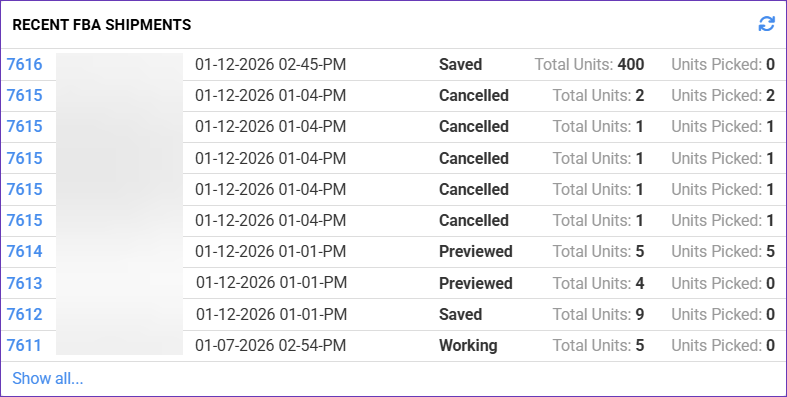
Open Putaway Lists
The Open PutAway Lists widget allows you to monitor the progress of the 10 latest open PutAway lists in the system. It displays:
- PutAway List ID – A clickable identifier that directs to the PutAway List page.
- Warehouse – A hyperlink to the warehouse associated with the list.
- Original Bin – A hyperlink to the bin, from which items are taken.
- Total Qty Put Away – The number of units successfully stored against the total units listed.
Click Show all… to view and refine all existing PutAway Lists. To refresh the list, click the widget’s Reload button.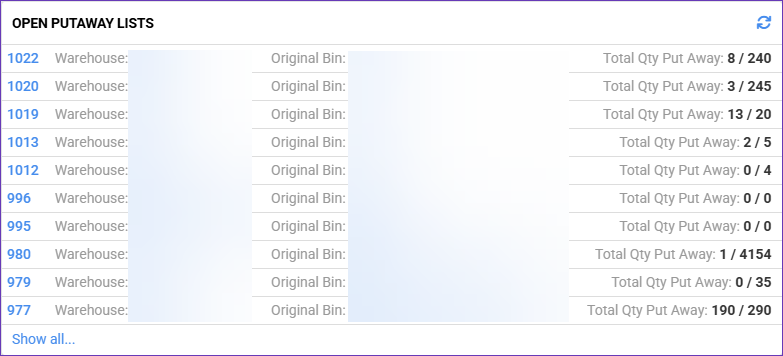
Recent Warehouse Transfers
The Recent Warehouse Transfers widget showcases a list of the 10 most recent Warehouse Transfers in your Skustack account. The following details are available:
- Warehouse Transfer ID – A clickable identifier that directs you to the warehouse transfer page.
- Warehouse Transfer Name – Name or title of the transfer.
- From Warehouse – Origin warehouse for the item transfer.
- To Warehouse – Transfer’s destination warehouse.
- Total Qty – Total number of transferred units.
Click Show all… to view and refine all existing Warehouse Transfers. To refresh the list, click the widget’s Reload button.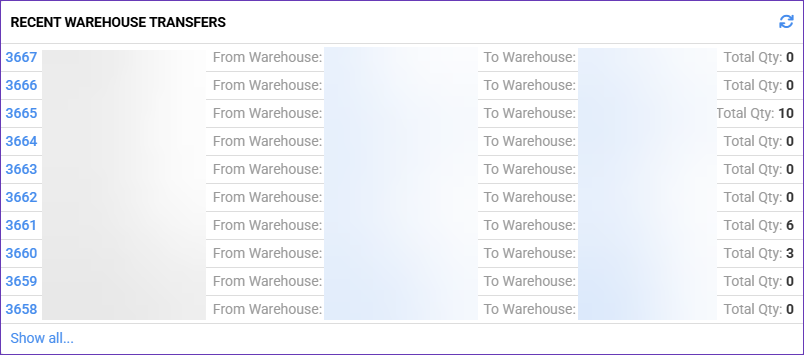
Recent SKU to SKU Transfers
This widget displays the 10 most recently completed SKU to SKU transfers within your Skustack account. It contains concise details for each transfer:
- SKU to SKU Transfer ID – Transfer’s unique identifier.
- From SKU – Source product, from which the transfer originates.
- To SKU – Product receiving the inventory.
- Total Qty – The total number of transferred items.
Click Show all… to view and refine all existing SKU to SKU Transfers. To refresh the list, click the widget’s Reload button.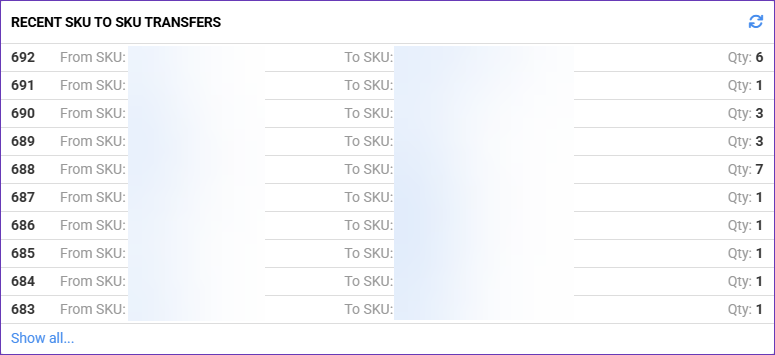
Recent RMAs
Here you can find the 5 most recent RMAs (Return Merchandise Authorization). It includes:
- RMA ID – The RMA identifier hyperlink, which leads to the RMA Details page.
- SKU – The product associated with the RMA.
- RMA Status – The status of the RMA. Available statuses are Open, Processing, On Hold, and Closed.
- Receiving Status – Indicates whether the products have been marked as Received.
Click Show all… to view and refine all existing RMAs. To refresh the list, click the widget’s Reload button.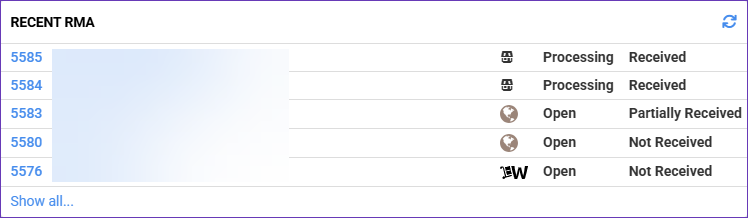
Recently Received
In the Recently Received widget, you’ll find the 5 latest Inventory Arrivals in your account. It contains the following details:
- Purchase Order ID – The PO number corresponding to the received inventory.
- SKU – A hyperlink to the received item’s Product Details page.
- Product Name – Item’s name/title.
- Vendor – The vendor from whom products are being ordered. Leads to the Vendor Details page.
- Date – Date received.
- Qty Received – The number of received units.
Click Show all… to view and refine all existing Inventory Arrival records. To refresh the list, click the widget’s Reload button.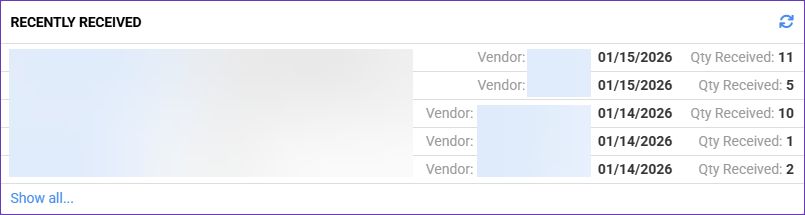
Purchase Orders
This widget shows a list of the 5 most recent Purchase Orders in your account. It contains:
- Purchase Order ID – A hyperlink to the PO’s Details page.
- Vendor – The PO Vendor from whom products are being ordered.
- Total – The purchase order’s grand total.
Click Show all… to view and refine all existing Purchase Orders. To refresh the list, click the widget’s Reload button.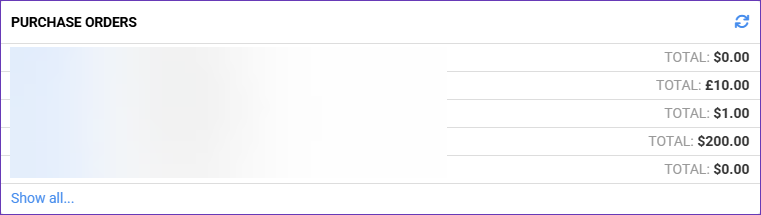
Recent Orders
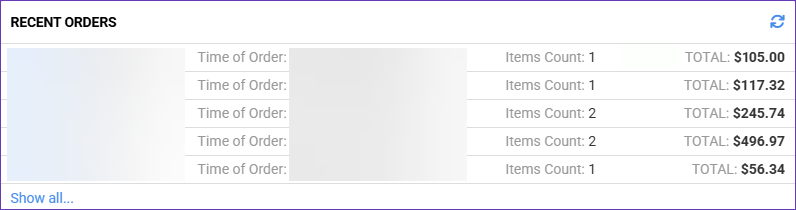
The Recent Orders widget displays a list of the 5 most recent orders in your account. Here you’ll find:
- Order ID – A clickable order identifier, which leads to the Order’s Details page.
- Order Status – The order’s current progress status.
- Time of Order – The date when the order was placed on the marketplace.
- Items Count – Total ordered items.
- Total – The order’s Grand Total.
Click Show all… to view and refine all existing Orders in your account. To refresh the list, click the widget’s Reload button.